

Starter
a month
For documents and occasional photos.
- 25 GB of protected data
- Unlimited folders and contributors
- Extra capacity at $0.10 per GB-month
01For documents, spreadsheets, decks, web pages, and media
GoodFolder gives your working folder a readable history. Save changes made by you or your agents, see who changed which files, and return to an earlier saved version. Keep using your existing apps.
Sign in by email, then connect a folder from your computer with a compatible agent.
02An example, from Save to Restore
 CodexOn your computer
Save Q3 Board Pack before we rewrite the summary.
Saved as #23. You can return to this version later.
Message Codex
We recommend a limited launch while the team completes customer testing.
03Your files, your apps
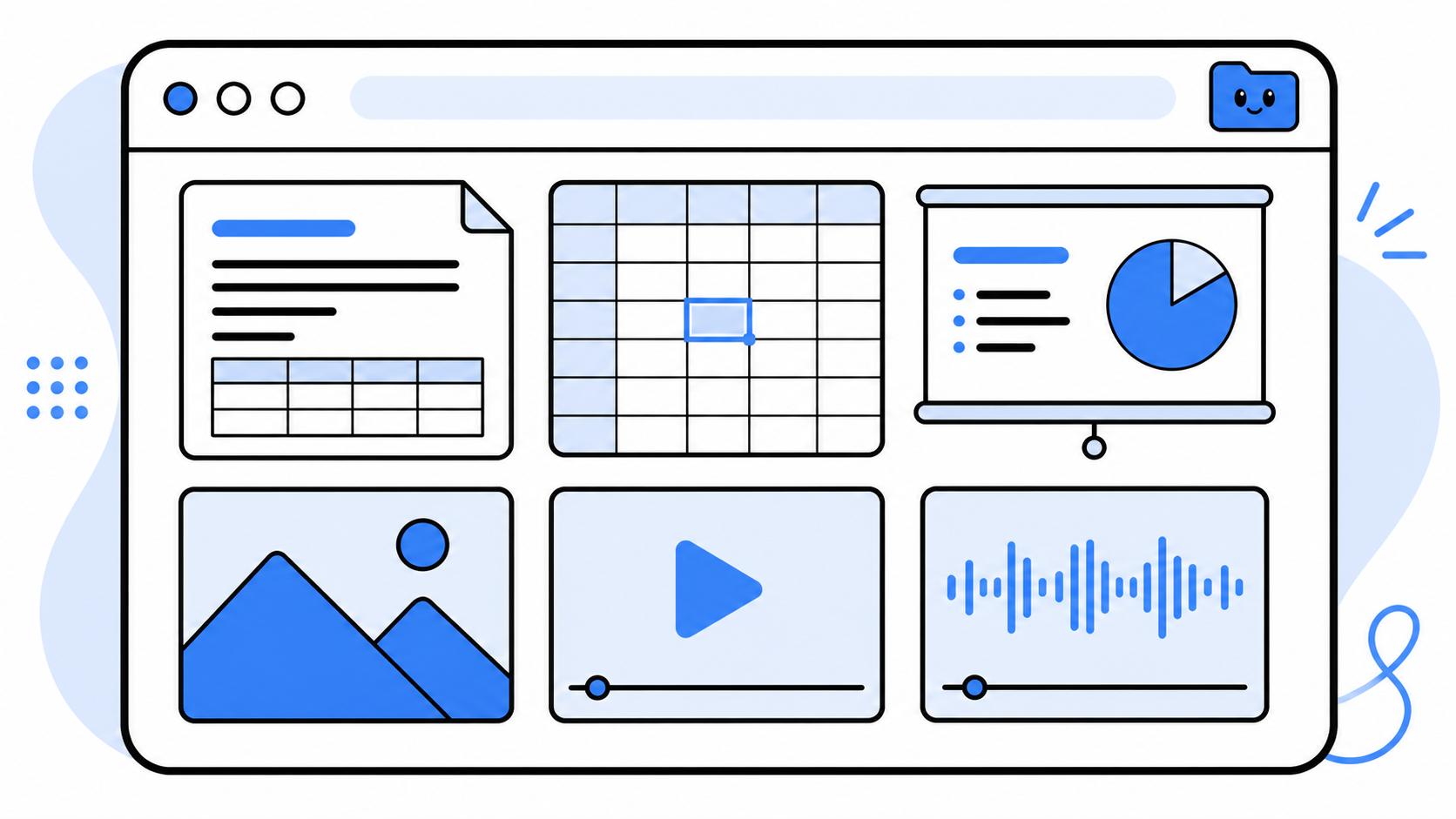
Word files, spreadsheets, PDFs, slide decks, HTML pages, and media keep their original formats and get the same readable history. Open them here when you want to see what an agent did, then carry on in the app you already use.
04Start with the folder you have
Set up GoodFolder with a compatible agent on the computer holding your folder. There’s no desktop installer yet; the guide walks you through setup from source.
Read the agent setup guideProtect my “Q3 Report” folder with GoodFolder.
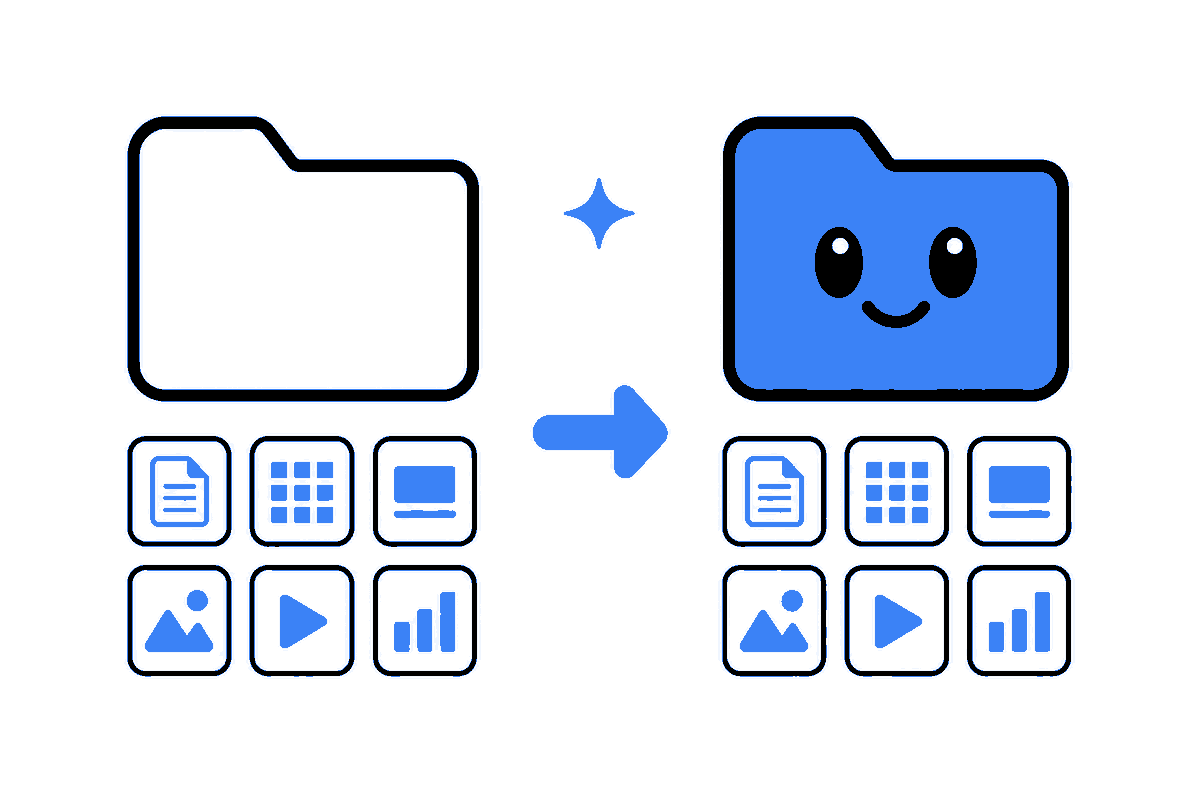
Capture the folder as it looks now. GoodFolder adds a short summary and the name of the person or agent who did the work.
Use the folder on another computer and pick up where you left off. If both copies changed, GoodFolder keeps both and tells you what happened.
See every Save in order, with the author, the time, and a plain description of what changed.
Bring back an earlier saved version. GoodFolder records the return as another Save, so you can change your mind later.
Sync sends a copy to your connected GoodFolder service. Your original folder stays in place. Sync and Restore run on a computer holding the folder.
05One folder, wherever you work
Sync carries your saved files and their history to another computer. You or your next agent can read what happened and continue from there.
06Your assistant, beside your files
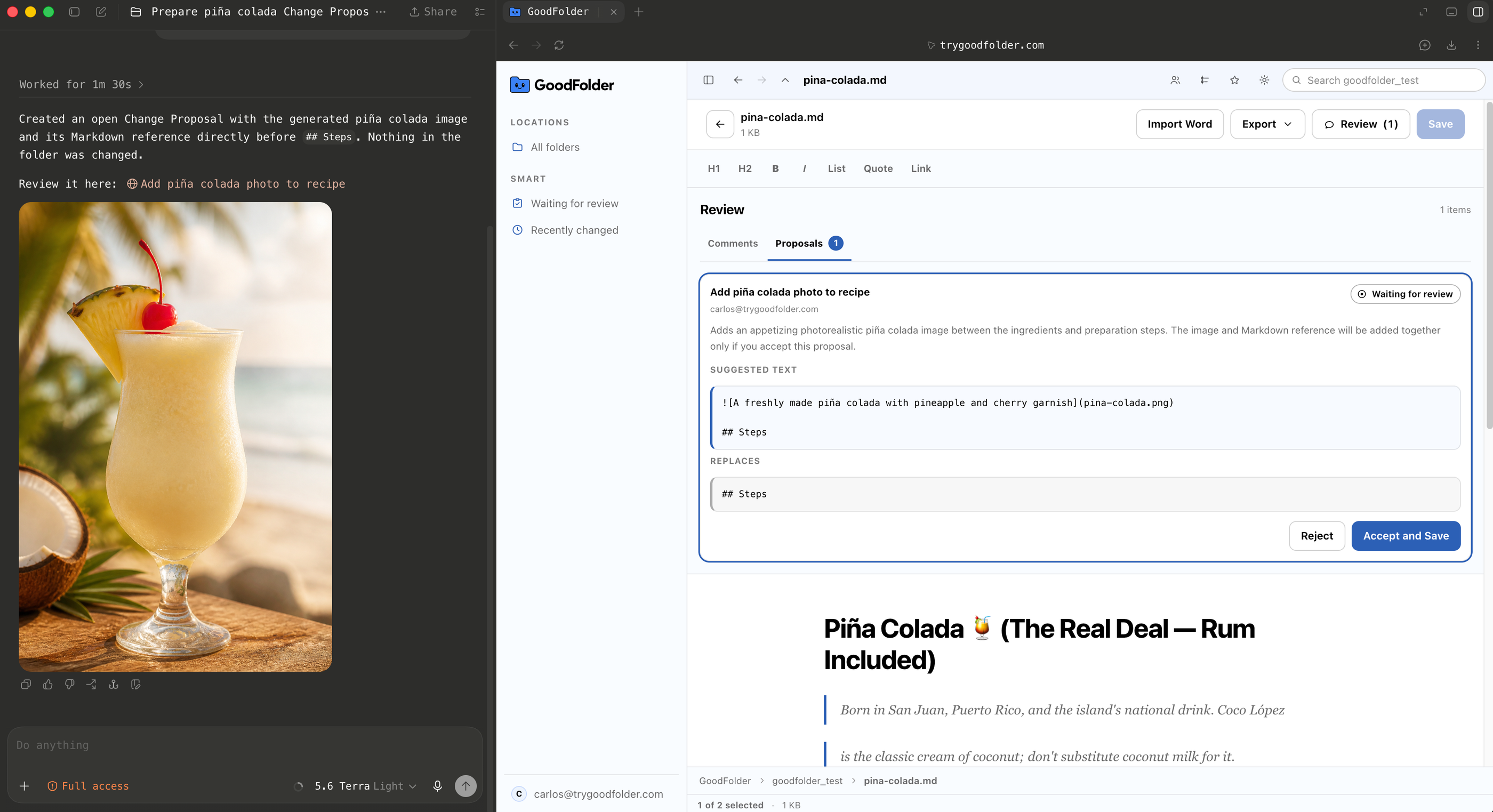
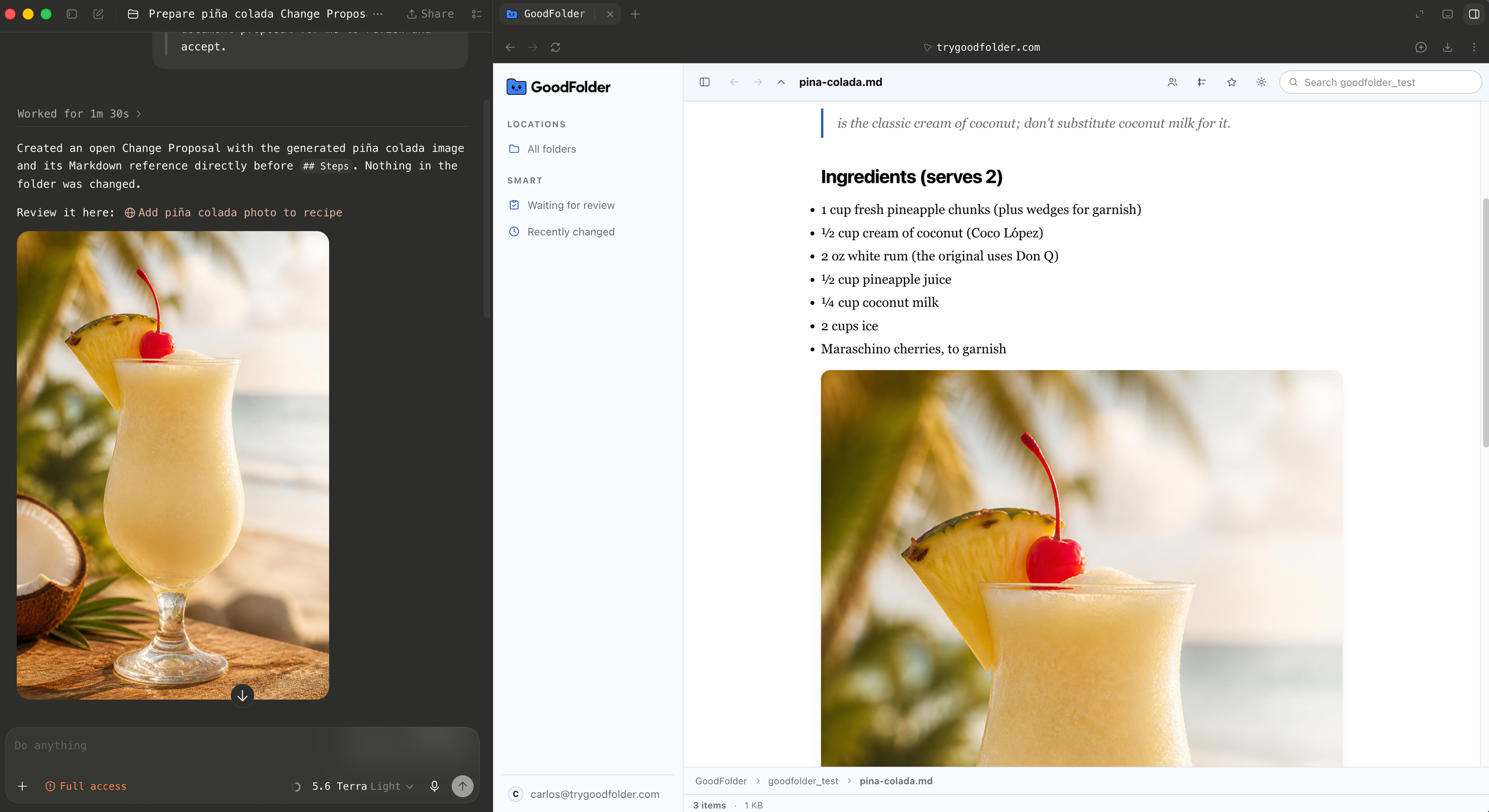
In compatible browsers, your assistant can read the open file and prepare a Change Proposal beside it. You review the result and decide whether to accept it. Browser assistants can propose work; they cannot accept it or Save it themselves.
In compatible browsers, ChatGPT’s built-in browser, ChatGPT Work and Codex find these as Site tools. WebMCP is a W3C Community Group draft; without it the dashboard works as usual.
08Run it yourself, or let us run it
Choose capacity for your current files and retained history. Every plan includes unlimited folders and contributors. Documents usually need less space than photos and video.
Hosted plans offer a 7-day trial. Sign in to see your account’s trial and billing options before connecting a folder.
Starter
For documents and occasional photos.
Plus
For regular agent work, photos, and video.
Studio
For large media files and frequent revisions.
Self-hosted
Prefer to run it yourself? Free forever, unlimited, Docker Compose, AGPL.
Your current files and earlier versions stay protected without an arbitrary expiry date. We warn you before you reach the limit, and reaching it pauses new protection instead of deleting what is already there.
07For the people who need to inspect the foundation
GoodFolder puts Save, Sync, Timeline, and Restore around an ordinary folder. Underneath, its history stays in a standard Git repository your engineers can inspect, while everyone else gets a clear way to keep work safe. Read the code before you believe any of this.
09Questions
You need a folder on your computer and a compatible agent such as Codex or Claude Code. Follow the Agent setup guide linked on this page to install GoodFolder from source and connect your folder.
There’s no desktop app or installer yet, so setup happens on the computer where the folder lives. After that, the dashboard works in any browser.
No. Ask your agent to Save when a piece of work is ready, or make a Save yourself. A Save captures the folder at that point; changes between Saves are not separate versions.
Make a Save before asking an agent to rewrite something, so you have a version to return to.
Your original folder stays where it is. Connecting to the hosted service and syncing sends a copy of the protected files and history to GoodFolder so you can review them in a browser or use them on another computer.
You can also run the GoodFolder service on your own server. Keep the backup you already trust.
If you or your agent Save the changed folder, that work appears in the timeline with its author and the files it touched. You can return to a version saved before the mistake.
On the computer where the folder lives, you can preview an undo of the latest Save or Restore an earlier one. Either return creates a new Save, which means you can undo that too.
They work in the browser. They can read the files, follow the timeline, leave comments, and send you a Change Proposal.
They can’t save into your folder, accept their own proposal, or change who has access. Those stay with you, on the computer where the folder lives.
No. The folder stays where it is, and every file keeps its original format.
Word, Excel and PowerPoint files open as read-only previews in the browser, so GoodFolder can’t rewrite the originals. You can edit notes, plain text, and simple tables in the dashboard. For everything else, keep using the app you use now.
Yes. HTML files open as rendered pages in the dashboard, with or without JavaScript. A page can use styles, images, video, audio, and data files from the same folder; links to other HTML pages in that folder work too.
Switch between Page and Source to see the result or read the file behind it. An assistant can propose a change and read the page’s render report for missing files or script errors. You review and accept the proposal before it changes the folder.
This works for HTML deliverables such as reports and interactive presentations. It doesn’t run a backend or a build process; apps that need those still use their own tools. Relative JavaScript module imports aren’t bundled by the preview.
Yes, in two places. On your computer, GoodFolder uses the Model Context Protocol, so Codex, Claude Code, and other compatible agents can protect a folder, Save, Sync, and Restore.
The dashboard also gives a browser assistant twenty-five WebMCP tools. Seventeen only read; the other eight can add a comment or prepare a Change Proposal, including a complete document, spreadsheet, PDF, presentation, or image that stays outside the folder until a person accepts it.
WebMCP comes from the W3C Web Machine Learning Community Group and is still a draft. If your browser doesn’t support it, the dashboard works normally without those tools.
Yes. A folder with an app in it saves, syncs and restores like any other, source files open in the browser, and an assistant can send you a Change Proposal for one.
Some things are left out of a Save on purpose: the packages a project downloads, the output its own tools rebuild, and anything shaped like a password or a key. Nothing you would want to keep is dropped silently, and you can ask for any of it back.
It is not a replacement for the tools an engineering team already uses, and it does not deploy anything. If you use one of those, keep it. This sits beside it.
No. GoodFolder isn’t a replacement for your cloud drive or backup, so keep the backup you already trust.
Its job is to remember what happened inside a working folder and help you recover an earlier version. It keeps a copy so you can use the same folder on your other computers, but it isn’t meant as a place to dump files for storage.
No. While your hosted account is active and within its authorized capacity, current files and earlier versions stay protected without an arbitrary expiry date.
If hosted access ends, the account moves to read and export mode for 30 days before scheduled deletion. We send reminders at the start of that period, seven days before deletion, and 24 hours before deletion.
You give an email address and we send a one-time sign-in link. There’s no password to make up and nothing to install.
Once you’re in, you’ll see the folders you own and any folder someone has shared with you. If a colleague invited you, sign in with the address they used.
Sign in by email, then follow the agent setup guide to connect a folder on your computer. Make your first Save and see its history here.
No password to remember. Your original files keep their names, formats, and location.